Seedance 2.0 is open for everyone at www.seedance2.ink
Detailed tutorial: How to use Seedance 2.0 model for video generation on www.seedance2.ink. Covers Start/End Frame & All Reference modes, key parameters, and practical prompting patterns.
Seedance 2.0 is open for everyone at www.seedance2.ink
We are thrilled to announce that Seedance 2.0 is now fully available at www.seedance2.ink!
As a multimodal AI video generation model with deep understanding capabilities, Seedance 2.0 not only generates high-quality videos but also allows you to distinctively direct character actions, performances, and camera movements. You can precisely control the output using simple text descriptions or by combining images, videos, and even audio for complex reference control. Seedance 2.0 empowers you to create multi-shot, voice-over-enabled cinematic stories in a single click.
This guide will walk you through how to unleash the full power of Seedance 2.0 on our website.
Quick Start: Interface Overview
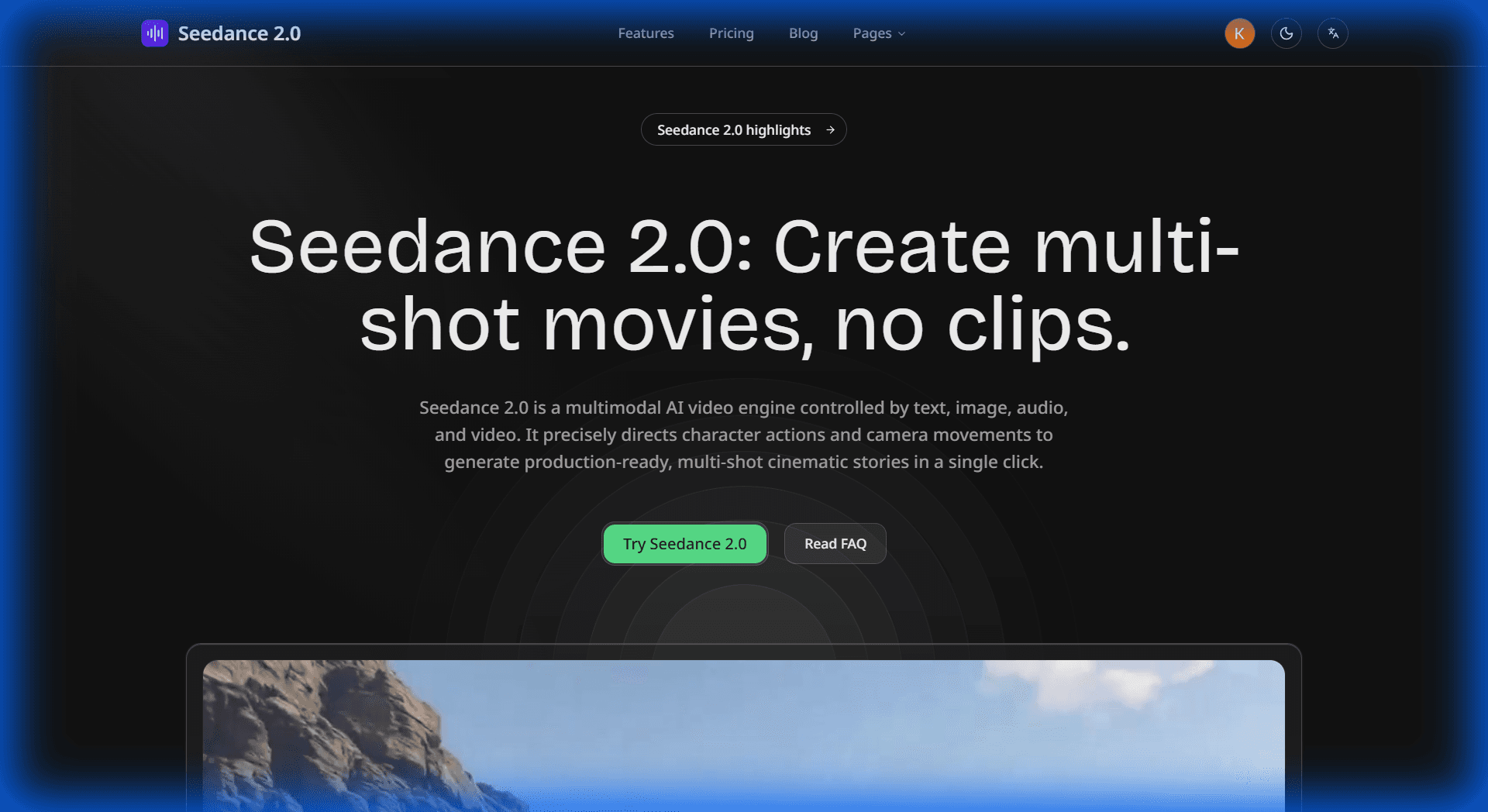
After logging in to www.seedance2.ink, you will see our clean and intuitive creation interface. The core area consists of the Input Control Section, Prompt Input Box, and the Bottom Toolbar.
Core Modes
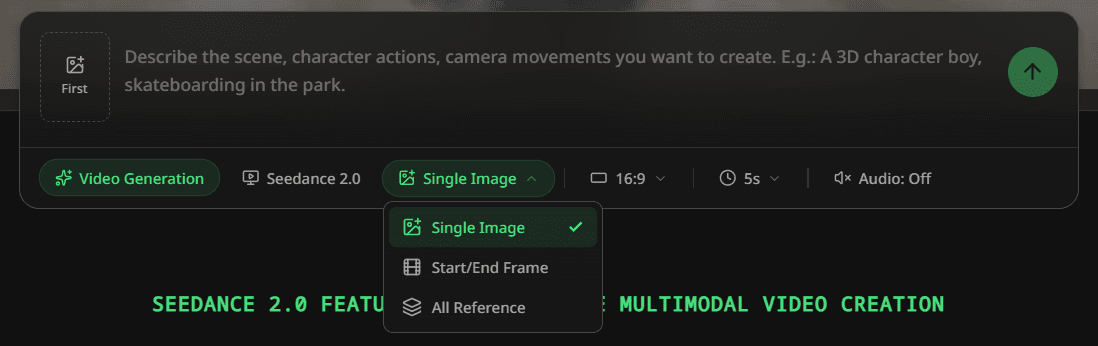
Seedance 2.0 offers two powerful generation modes to suit different creative scenarios. You can switch between them using the "Toggle mode" button (icon resembling film or layers) in the bottom toolbar.
1. Start/End Frame Mode
This is the classic and most accessible mode, perfect for scenarios where you need precise control over the Start and End frames of the video.
- Use Cases: Bringing static images to life, connecting two keyframes seamlessly, or creating transitions for existing footage.
- How to Use:
- First (Optional): Click the "First" upload slot on the left to upload an image as the starting frame.
- Last (Optional): Click the "Last" upload slot on the right to upload an image as the ending frame.
- Prompt: Describe what you want to happen between these two frames in the text input box.
Tip: You can upload just the First frame and let AI imagine the rest, or upload both to let the AI "fill in the gap" for a smooth, directed transition.

2. All Reference Mode
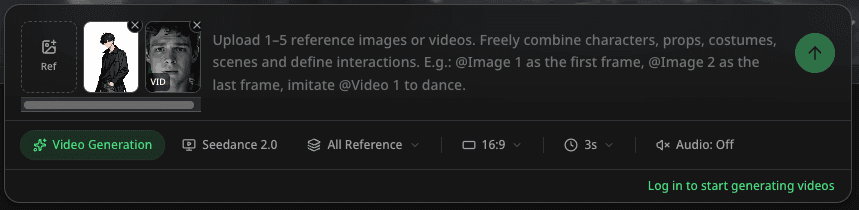
This is the most ground-breaking feature of Seedance 2.0. It allows you to upload images, audio, and video as reference elements, enabling the AI to deeply understand and apply these references to precisely control the generated video (currently supports up to 5 reference elements due to computing limits).
- Use Cases:
- Character Consistency: Upload multiple images of a character to ensure facial features remain consistent across different shots.
- Motion Transfer: Upload a video of a real person dancing to make your anime character mimic the exact moves (Video-to-Video).
- Style Transfer: Upload a specific art style image to maintain that aesthetic throughout the generated video.
- How to Use:
- Click the "Ref Content" upload slot to select your reference images or videos.
- In the prompt, use
@Image 1or@Video 1to precisely refer to them (although not mandatory, explicit references yield better results).
Parameters: Customize Your Video
In the bottom toolbar, you can adjust the following parameters to tailor your output:
- Aspect Ratio:
16:9: Cinematic look, ideal for YouTube videos.9:16: Vertical shorts for TikTok, Reels, and Shorts.1:1: Square format for Instagram posts.
- Duration:
- Flexible choice from 3s to 15s. We recommend 3-5 seconds for initial trials (faster generation), and 10s or longer for complete storytelling sequences.
- Audio Generation:
- When enabled, the AI automatically generates matching sound effects (like rain, footsteps) and voiceovers based on the video content, achieving true native audio-visual synchronization—making your video not just look good, but sound immersive.
Prompting Guide
Leverage Seedance 2.0's multimodal understanding by providing various reference elements and combining them with specific camera movement descriptions for precise control.
Multimodal Prompt Structure Formula
[Reference Elements (@ref)] + [Camera Movement] + [Subject Action] + [Environment/Atmosphere]
The key is to clearly tell the AI what to use from your references and how to move the camera.
Practical Examples
1. Character Performance & Motion Cloning (All Reference Mode):
- Input: Upload character sheet (
ref1) + reference motion video (ref2) - Prompt:
"Using the character from
@ref1, precisely execute the moves from@ref2. Slow Zoom In on the character's face to capture the changing expressions and determined eyes. Keep the background blurred to emphasize the subject."
2. Scene Narratives & Camera Staging (Start/End Frame Mode):
- Input: Upload starting scene image (
Start Frame) - Prompt:
"Starting from the current frame, Pan Right to gradually reveal the ancient ruins hidden on the right side. Lighting shifts from dawn to noon, with shadows moving rapidly to create a sense of time passing."
3. Immersive Audio-Visual Experience (All Reference Mode):
- Input: Upload environmental reference image (
ref1) + audio file (ref2) - Prompt:
"In the forest scene depicted in
@ref1, leaves sway in the wind. The visual rhythm syncs perfectly with the audio beat from@ref2. Low Angle Shot capturing the Tyndall effect of sunlight through the leaves, creating a dreamy atmosphere."
Summary
Seedance 2.0 is not just a tool; it's an amplifier for your creativity. With Start/End Frame and All Reference modes, combined with multimodal reference capabilities, you can easily create cinematic, multi-shot continuous video sequences.
Try it now at www.seedance2.ink! We can't wait to see what you create.
More Posts
Seedance 2.0: AI Video Generation Reimagined through Multimodal Understanding & Precise Control
Discover Seedance 2.0 - the multimodal AI video engine that gives you deterministic control over characters, motion, and lip-sync.
Hello World
Welcome to the blog.

Seedance 2.0 API is Now Live
Starting today, developers can integrate Seedance 2.0"s powerful multimodal AI video generation into their applications. Compatible with Max API, transparent pricing, ready to use.
Newsletter
Join the community
Subscribe to our newsletter for the latest news and updates